
Follow these ten steps to install SIMULIA Abaqus 2026 on Windows — from downloading the installation media to a validated first launch. Do not skip steps. Do not improvise the extraction. The installer is strict about structure.
- Use a Windows machine with full administrator rights. The installer will not run correctly without them.
- Keep all downloaded installation bundles in the same folder before you start extraction. Splitting them across locations breaks the shared media structure.
- Ensure sufficient free disk space for downloading (~15–30 GB depending on selected products), extracting, and installing — all at the same time.
- Confirm in advance whether your site uses FLEXnet or DSLS licensing. These are two different license server technologies — choosing the wrong one means Abaqus will not start after installation
- Install 7-Zip (or an equivalent tool that handles .tar archives) before you begin. Windows Explorer cannot extract .tar files natively.
- Have your license server hostname or IP address, and the port number, ready before you reach Step 6
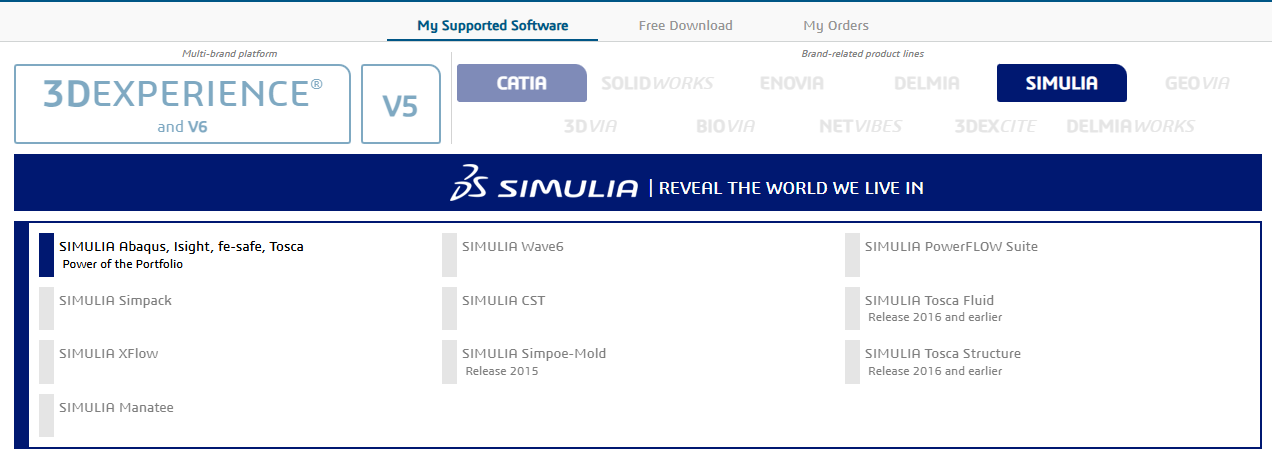
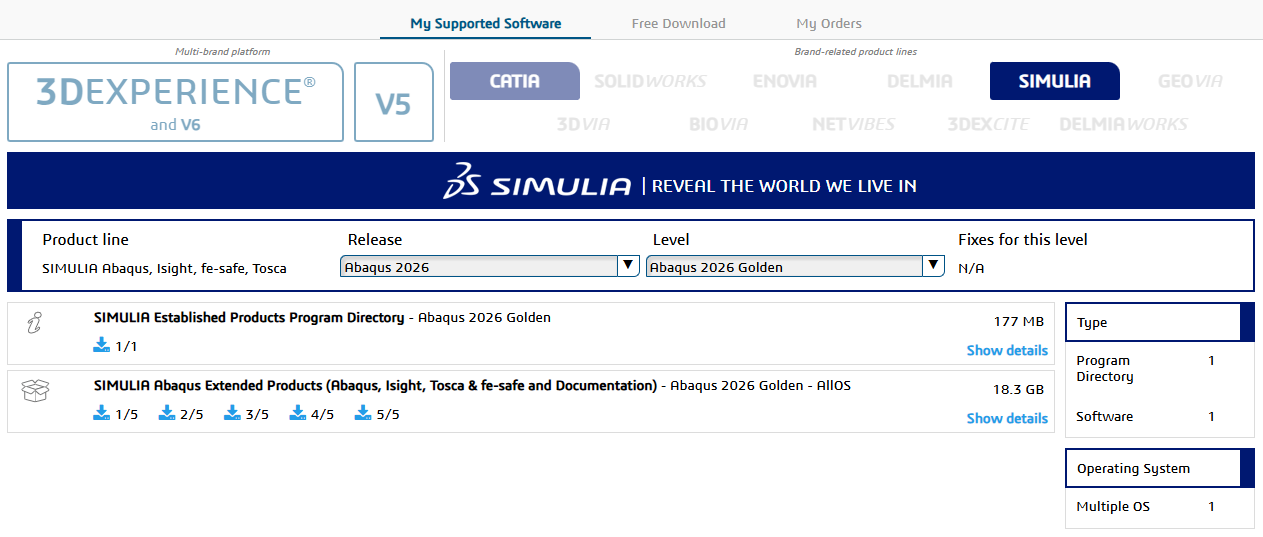
SIMULIA Software Portal · Abaqus 2026 · Golden Level
- Sign in to the official SIMULIA software portal using your licensed account credentials.
- Navigate to the SIMULIA product area, select Abaqus 2026, and choose the Golden Level release. The Golden Level designates the highest available maintenance update for that release cycle.
- Download every installation bundle listed for your operating system. Do not begin extraction until all files have finished downloading
- Legen Sie alle heruntergeladenen .tar-Archive in einem einzigen dedizierten Ordner ab. Verwenden Sie einen Pfad ohne Leerzeichen (z.B. C:\Abaqus2026_Install\) — Leerzeichen im Pfad können stille Fehler bei Extraktion und Installation verursachen.
- If you also need fe-safe, Tosca Structure, Isight, or the EP API — download those bundles now in the same session to avoid returning to the portal.
Note
The AllOS (All Operating Systems) bundle is the standard installation media and is sufficient for a Windows Abaqus installation. If you require user subroutines (UMAT, VUMAT, UEL, etc.), a Fortran compiler must be obtained and installed separately — it is not included in the Abaqus media.
Archive Completeness Check · Before Any Extraction
- Open your download folder and confirm every file listed in the portal manifest is present. A partial set will produce a broken installation without any clear error message
- Cross-check file sizes against the values shown in the portal. A file noticeably smaller than expected was interrupted during download and must be re-downloaded.
- If any .tar archive is missing or undersized — delete it and re-download that specific bundle. Do not attempt to extract an incomplete archive.
- Do not extract yet. Extraction is covered in Step 3 with a procedure that must be followed exactly — extracting now without the correct method will break the media structure
Skipping file verification is the most easily avoidable cause of a failed installation. Two minutes of checking here prevents hours of reinstalling later.

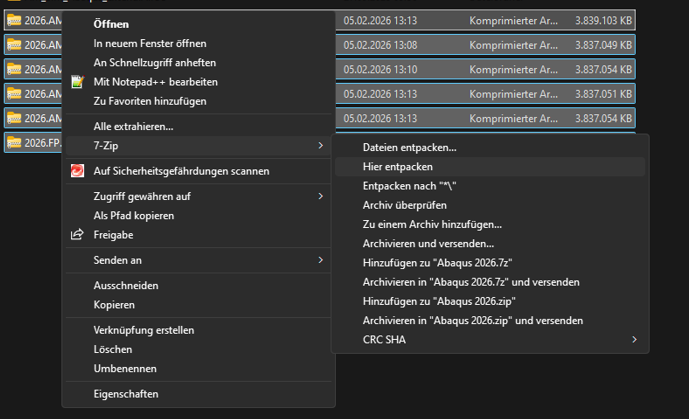
7-Zip · Extract Here · One Shared Media Structure
- Select ALL downloaded .tar files simultaneously in your folder — do not extract them one by one.
- Right-click the selection and choose 7-Zip → Extract Here (not ‘Extract to subfolder’). This places all archives into the same root directory, which is the structure the installer requires.
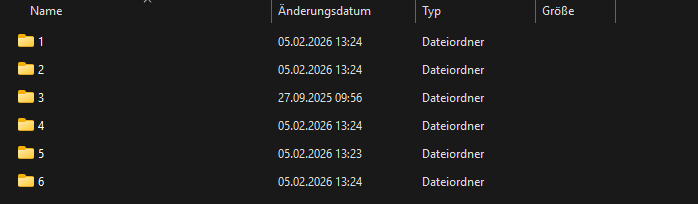
- After extraction completes, you will see a folder named AM_SIM_Abaqus_Extend.AllOS (or a similar name). Open it.
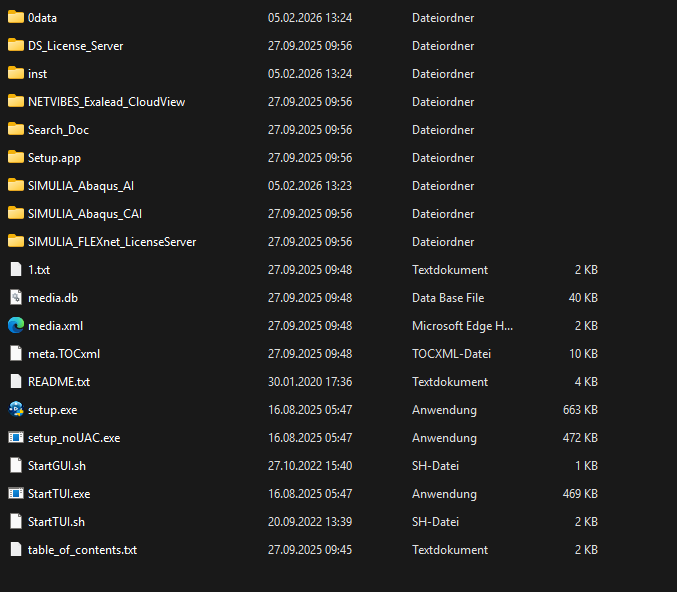
- Inside, open the numbered subfolder ‘1’. This is where setup.exe is located
- Do not move, rename, or restructure any extracted folders. The installer automatically resolves its own media paths relative to this structure — any change breaks it.
Never extract each archive into its own separate subfolder. The installer requires all archives to share a single root directory. Separate extractions produce ‘media not found’ errors mid-installation with no easy recovery.
setup.exe · Right-click → Run as administrator
- Inside subfolder ‘1’, locate setup.exe.
- Right-click setup.exe and select ‘Run as administrator’. Do not double-click it — without elevated privileges, the installer silently fails or stops mid-run without a clear error
- The welcome screen opens. Accept the license agreement and proceed to the component selection screen
- Auf dem Tools-Auswahlbildschirm wählen Sie aus, welche SIMULIA-Produkte in diesem Installationslauf enthalten sein sollen. Lesen Sie Schritt 5, bevor Sie Ihre Auswahl treffen.
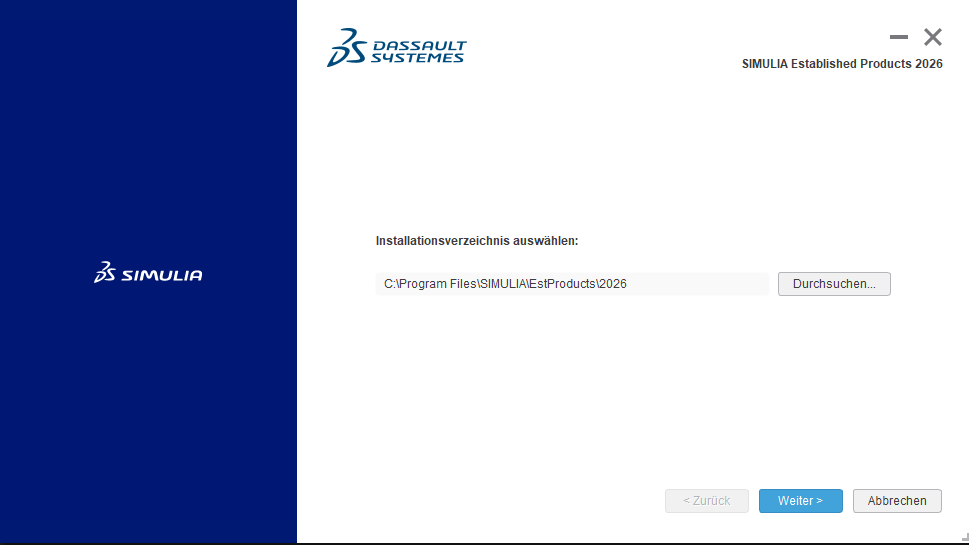
- On the Installation Path screen, define the root directory where Abaqus will be installed. Choose a path without spaces and note it down — you will need it for troubleshooting and future updates
Note
If Windows UAC prevents the prompt from appearing, check your local security policy or contact your IT administrator. Administrator rights are mandatory — this cannot be worked around.
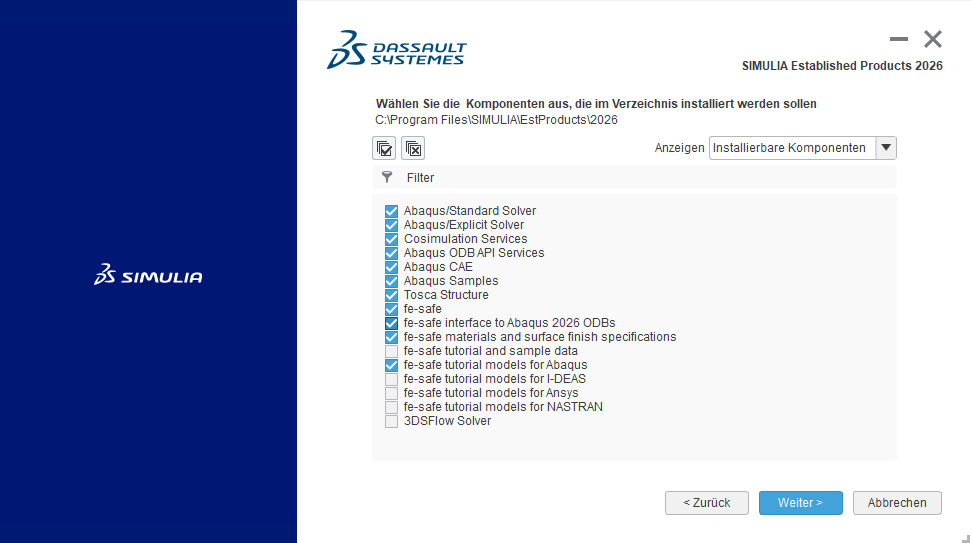
Product Selection · Fatigue · Structural Optimization
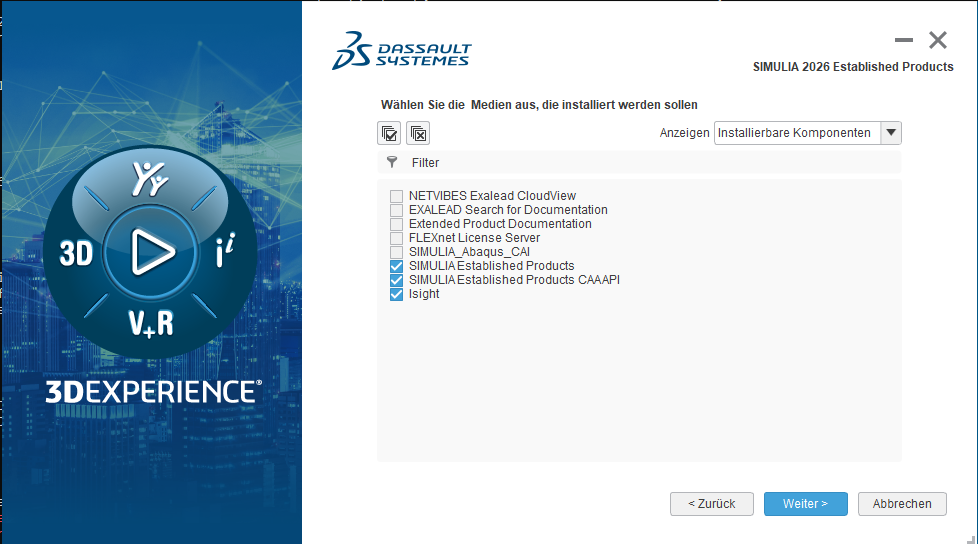
- The product selection screen lists all installable SIMULIA components. Do not rush through it — your selections here determine your entire simulation toolchain.
- Select Abaqus/CAE and Abaqus/Standard + Explicit as the core products if not pre-checked. Abaqus/Standard is the implicit solver for static, quasi-static, and frequency analyses; Abaqus/Explicit is the explicit time-integration solver for impact, crash, and highly dynamic events.
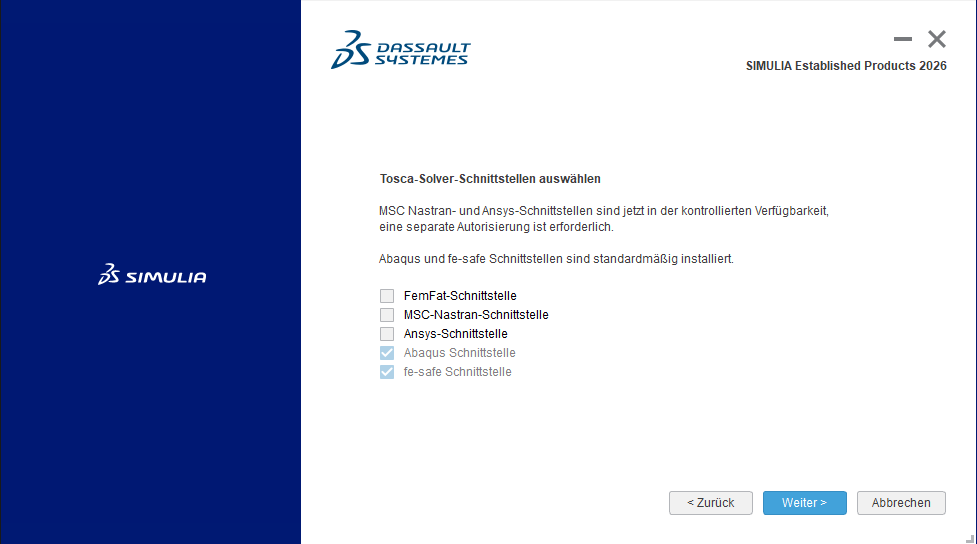
- If your team performs fatigue or durability analyses — select fe-safe. It reads stress and strain history output from Abaqus results files (.odb) and applies multiaxial fatigue algorithms to predict fatigue life and safety factors.
- If your workflows include structural topology, shape, or sizing optimization — select Tosca Structure. It integrates directly with Abaqus as the FEA solver and is the standard choice for structural engineering teams
- Important: Tosca Fluid is an entirely separate product for CFD-based fluid domain topology optimization. It requires a CFD solver (STAR-CCM+ or ANSYS Fluent) — Abaqus is not its analysis engine. Do not select Tosca Fluid unless your workflow explicitly involves fluid domain optimization with a supported CFD solver
- Installing all required products in one run is significantly easier than re-running the installer later to add components
- Confirm your selection matches your license entitlements. Products you select without a license will install successfully but cannot be launched
Note
If you are unsure about your fe-safe or Tosca entitlements, check with your SIMULIA account manager or review your license file before this step. It is faster to verify now than to investigate missing tokens after installation
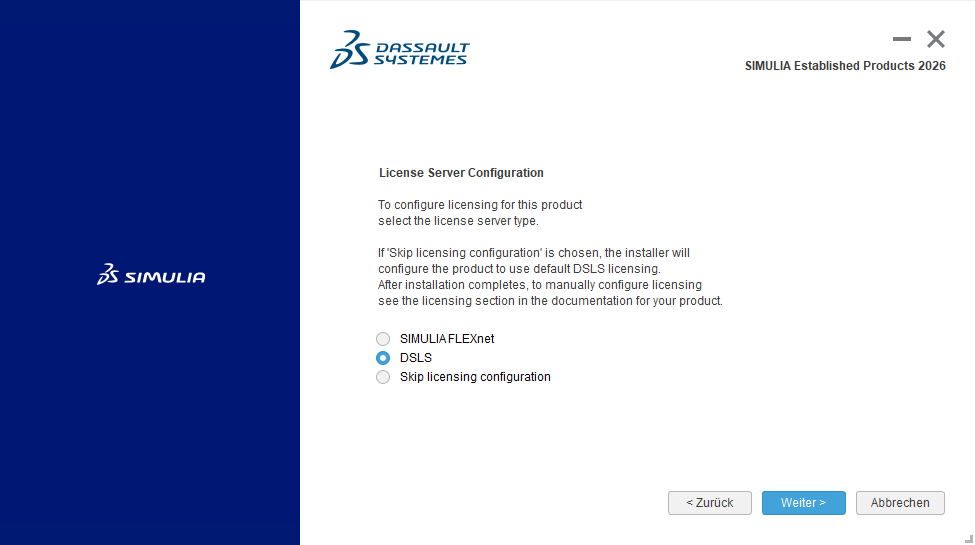
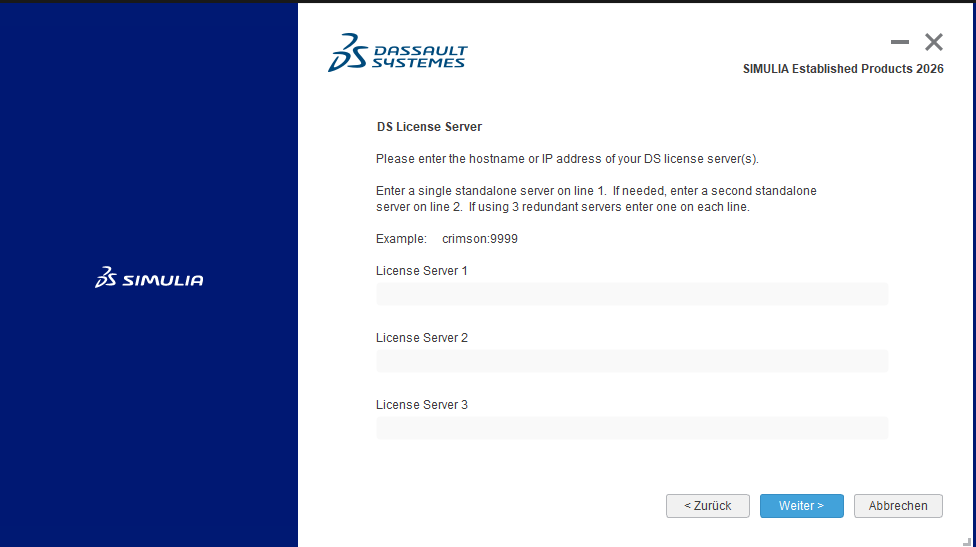
FLEXnet · DSLS · License Server · Port · Hostname
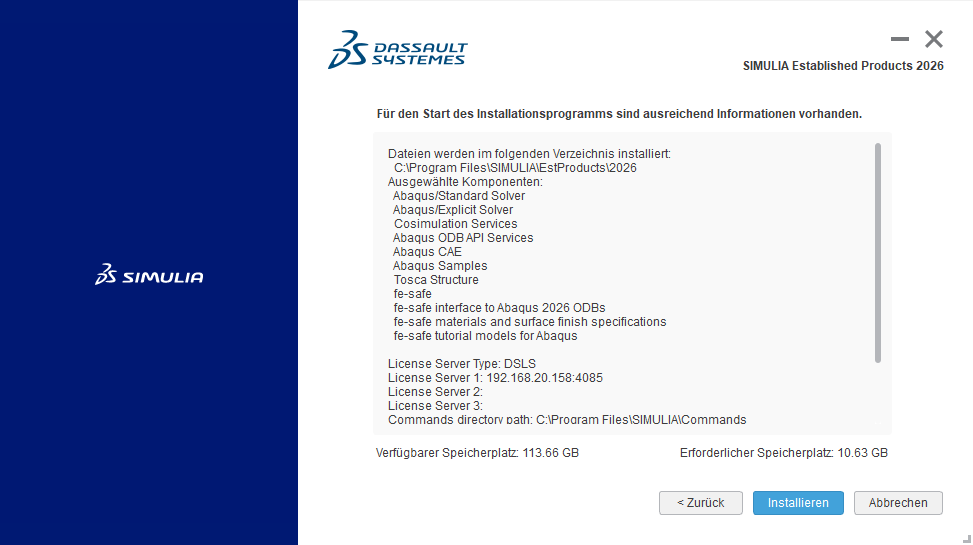
- Select the licensing method that matches your site: FLEXnet (the FlexLM-based license server, managed by lmgrd) or DSLS (Dassault Systemes License Server, a separate DS-specific license server technology).
- FLEXnet connection format: port@hostname — for example 27000@licserver01. The default FLEXnet port is 27000
- DSLS connection format: hostname:port — for example licserver01:4085. The default DSLS port is 4085. Note that this format is the reverse of FLEXnet — hostname comes first in DSLS.
- For a local single-machine installation where the license server runs on the same workstation, localhost or 127.0.0.1 can be used as the hostname
- Do not guess license server details. If you do not have the exact server hostname and port confirmed by your IT or CAE infrastructure team — stop and obtain them before continuing.
- Record the exact values you enter. Licensing details will be required again if you need to repair, reinstall, or update Abaqus
Critical
Incorrect licensing is the leading cause of Abaqus failing to start after a completed installation. FLEXnet and DSLS use different connection string formats — verify which system your site uses and use the correct syntax. A single character error causes license checkout failure.
Installation Dir · Commands Dir · Plugins Dir · lmgrd Service
- On the installation directory screen, define where Abaqus will be installed. The default is typically C:\SIMULIA\Abaqus26 — adjust this if your site uses a different path convention
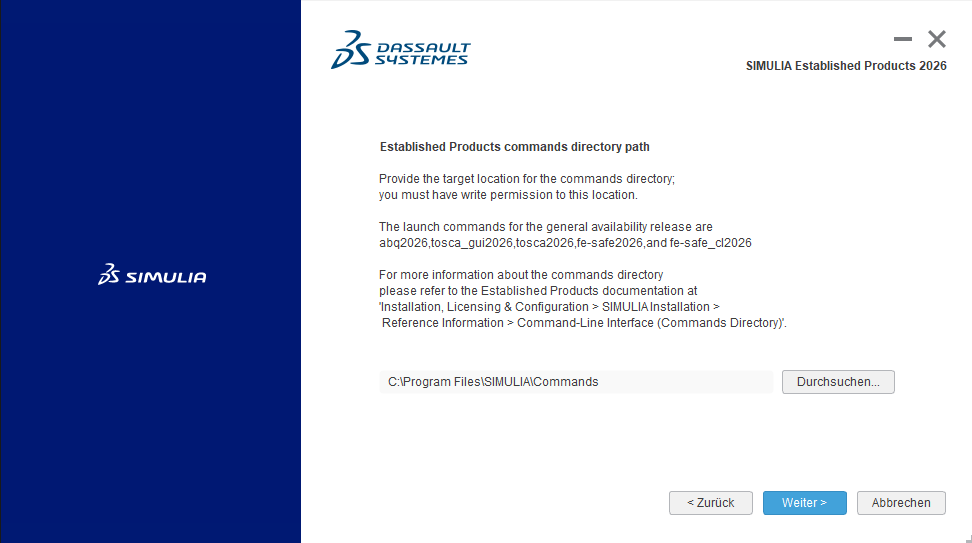
- Define the commands directory: this is where the Abaqus launcher executable (abaqus.bat) is placed and registered in the system PATH, making the ‘abaqus’ command available from any terminal window.
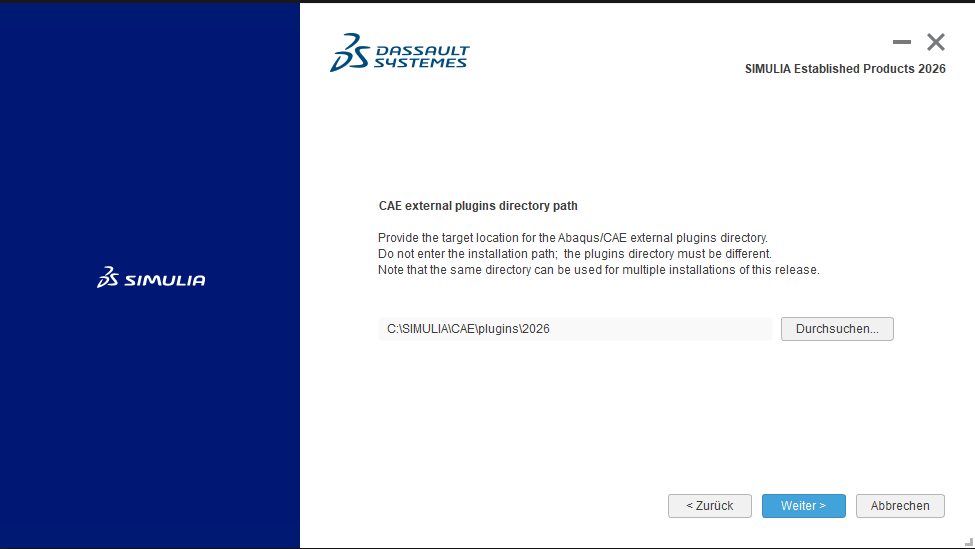
- Define the plugins directory: this is for Python-based Abaqus/CAE UI plugins — custom toolbars, menu extensions, and toolbox scripts that extend the Abaqus/CAE graphical interface. This directory is NOT for user subroutines
- Critical — user subroutines (UMAT, VUMAT, UEL, DLOAD, USDFLD, UVARM, etc.) are Fortran source files that Abaqus compiles at runtime. They are referenced in the input file or CAE, NOT placed in the plugins directory. A compatible Fortran compiler (Intel oneAPI Fortran Compiler is the current DS-recommended choice for Windows) must be installed separately and linked to Abaqus.
- Wenn mehrere Abaqus-Versionen auf derselben Maschine installiert sind — verwenden Sie klar unterschiedliche Pfade mit der Versionsnummer in jedem Verzeichnisnamen, um Konflikte zu vermeiden.
- Die Dienste-Einstellung steuert, ob der FLEXnet-Lizenzmanager-Daemon (lmgrd) als automatischer Windows-Startdienst konfiguriert wird. Dies ist ausschließlich auf der Maschine relevant, die den FLEXnet-Lizenzserver hostet. Auf einer Client-Workstation, die einen Remote-Lizenzserver verwendet, ist diese Einstellung nicht anwendbar.
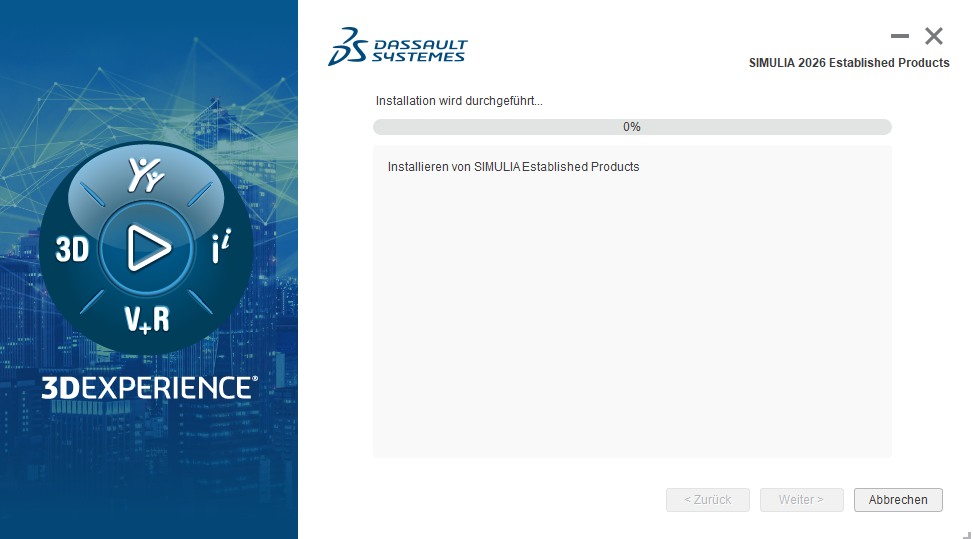
- Confirm all paths and click Install. Installation duration varies from several minutes to over 30 minutes depending on the components selected
Note
Führen Sie schriftlich Protokoll über alle während der Installation eingegebenen Pfadwerte. Dies ist unerlässlich für zukünftige Reparaturen, Versions-Upgrades oder wenn Sie die Abaqus-Umgebungsdatei (abaqus_v6.env) für Subroutinen-Compilerpfade konfigurieren müssen.
EP API · 3DEXPERIENCE Platform Integration · Simulation Lifecycle
- The Established Products API (EP API) is the integration layer that connects standalone SIMULIA Abaqus with the Dassault Systemes 3DEXPERIENCE platform. It enables platform-driven job submission, simulation lifecycle management, and result storage within 3DEXPERIENCE.
- Installieren Sie diese Komponente, wenn Ihre Organisation die 3DEXPERIENCE-Plattform zusammen mit Abaqus einsetzt — beispielsweise um Abaqus-Jobs aus 3DEXPERIENCE heraus einzureichen und zu überwachen oder Simulationsdaten und Ergebnisse über die Datenverwaltungsfunktionen der Plattform zu speichern.
- Wichtig: Python-Skriptierung innerhalb von Abaqus/CAE (über den integrierten Skript-Editor, den Dialog ‘Skript ausführen’ oder die Befehlszeile ‘abaqus python’) ist eine eingebaute Kernfunktion von Abaqus. Sie erfordert die EP-API NICHT. Die EP-API betrifft ausschließlich die 3DEXPERIENCE-Plattformanbindung.
- Legen Sie auf dem EP-API-Installationsbildschirm die Befehls- und Plugin-Verzeichnisse fest — diese spiegeln typischerweise die in Schritt 7 definierten Pfade wider.
- If your team works exclusively with standalone Abaqus using a FLEXnet or DSLS license server, with no 3DEXPERIENCE platform involvement, this component is not required. It can be added later from the same extracted media without reinstalling Abaqus
Note
Die EP-API ist unerlässlich für Organisationen, die Abaqus als Teil einer 3DEXPERIENCE-Simulationsprozessumgebung betreiben. Für rein eigenständige Abaqus-Deployments — die Mehrzahl der CAE-Workstation-Setups — kann dieser Schritt ohne Auswirkungen auf die Simulationsfähigkeit übersprungen werden.
Process Integration · Design Optimization · SEE · Java Runtime
- Isight is SIMULIA’s process integration and design optimization (PIDO) tool. Install it if your team runs parametric studies, design of experiments (DOE), multi-objective optimization, or multi-disciplinary optimization (MDO) workflows
- Isight can wrap Abaqus simulations as components in an automated optimization loop — running hundreds or thousands of design variants without manual intervention
- If you also require the SIMULIA Execution Engine (SEE) — for distributed, parallel execution of Isight simulation workflows across multiple compute nodes — you must provide a Java Runtime Environment (JRE) during this step. The required JRE version is specified in the Abaqus 2026 System Requirements document. Using an incompatible Java version will prevent SEE from starting
- If SEE is not required, skip the SEE installation sub-step and complete the Isight setup alone
- Isight requires its own license entitlement (Isight tokens). Confirm with your license administrator that Isight tokens are present in your license file before installing.
- If Isight is not part of your current workflow, skip this step entirely. It can be added later by re-running the installer from the same extracted media without reinstalling Abaqus
Checkpoint
Install Isight now if it is already part of your simulation pipeline. Keeping all SIMULIA components on the same release level ensures compatibility and avoids mixed-version issues in optimization workflows.
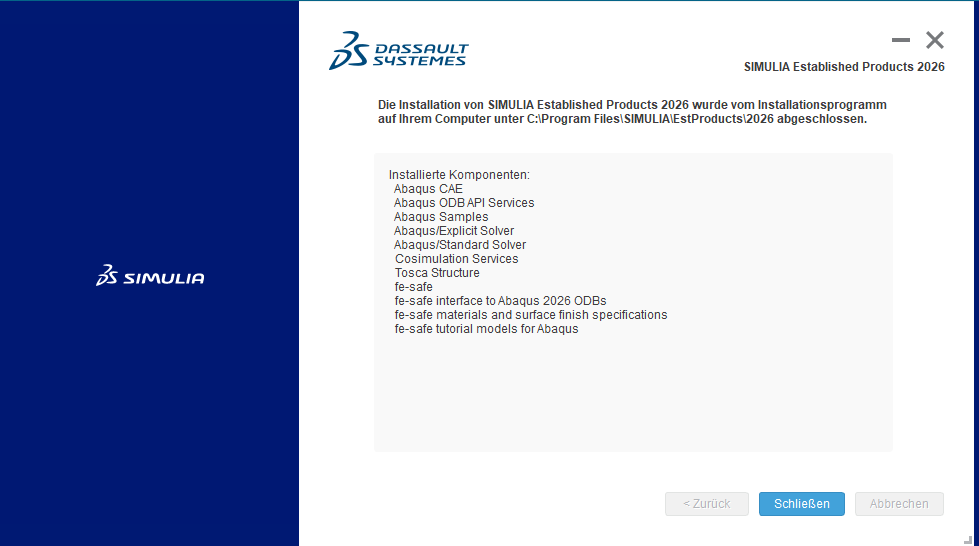
First Launch · License Validation · Known Issues · Validation Job
- Launch Abaqus/CAE from the Start menu or command line using ‘abaqus cae’. Wait for the GUI to fully initialize before assessing the outcome
- Confirm the application opens without a license checkout error. A successful Abaqus/CAE window confirms that the installation files, license configuration, and network connectivity to the license server are all correctly aligned
- Run a short test job — for example, submit a simple linear static analysis — to verify that both the Abaqus/CAE GUI license token and the Abaqus/Standard solver license token are checked out successfully.
- Check the Abaqus .log and .dat output files of the test job for any warnings about missing features or unlicensed modules
- Do not delete the extracted installation media until every required component — including optional ones — has been validated and confirmed working. You may need the media for repairs or to add components
✗ Installer does not start
Verify setup.exe was launched via right-click → ‘Run as administrator’. Running it without elevated privileges fails silently on most Windows configurations
✗ Incorrect folder structure after extraction
Delete the entire extraction output. Select ALL .tar archives at the same time and unzip them again with 7-Zip → Unzip here into a single parent folder.
✗ License error on first launch
Recheck FLEXnet vs. DSLS selection and verify the server address and port from Step 6. Check connection string syntax: FLEXnet uses port@hostname, DSLS uses hostname:port
✗ Optional product does not launch
Re-run the installer from the same extracted media. Select the missing component and add it without uninstalling the existing Abaqus installation.
✗ User subroutine compilation fails
A compatible Fortran compiler must be installed separately and its path registered in the Abaqus environment file (abaqus_v6.env). Intel oneAPI Fortran Compiler is the DS-recommended option for Windows.
✓ Installationcomplete
- Complete download
All packages downloaded, all file sizes checked before extraction begins. - Correct extraction
All archives unpacked together in a single root directory – not separately. - Correct license configuration.
FLEXnet or DSLS, correct syntax, correct server and port – confirmed in advance.